Are you a disaster survivor looking for help? Click here
Help Center /
Survivor Management System
/
How to Use Your Home Dashboard
This article is for a:
Case Worker
Supervisor
Program Administrator
Your Home Dashboard is designed to help you see all your assigned work.
Understanding the Tasks Table
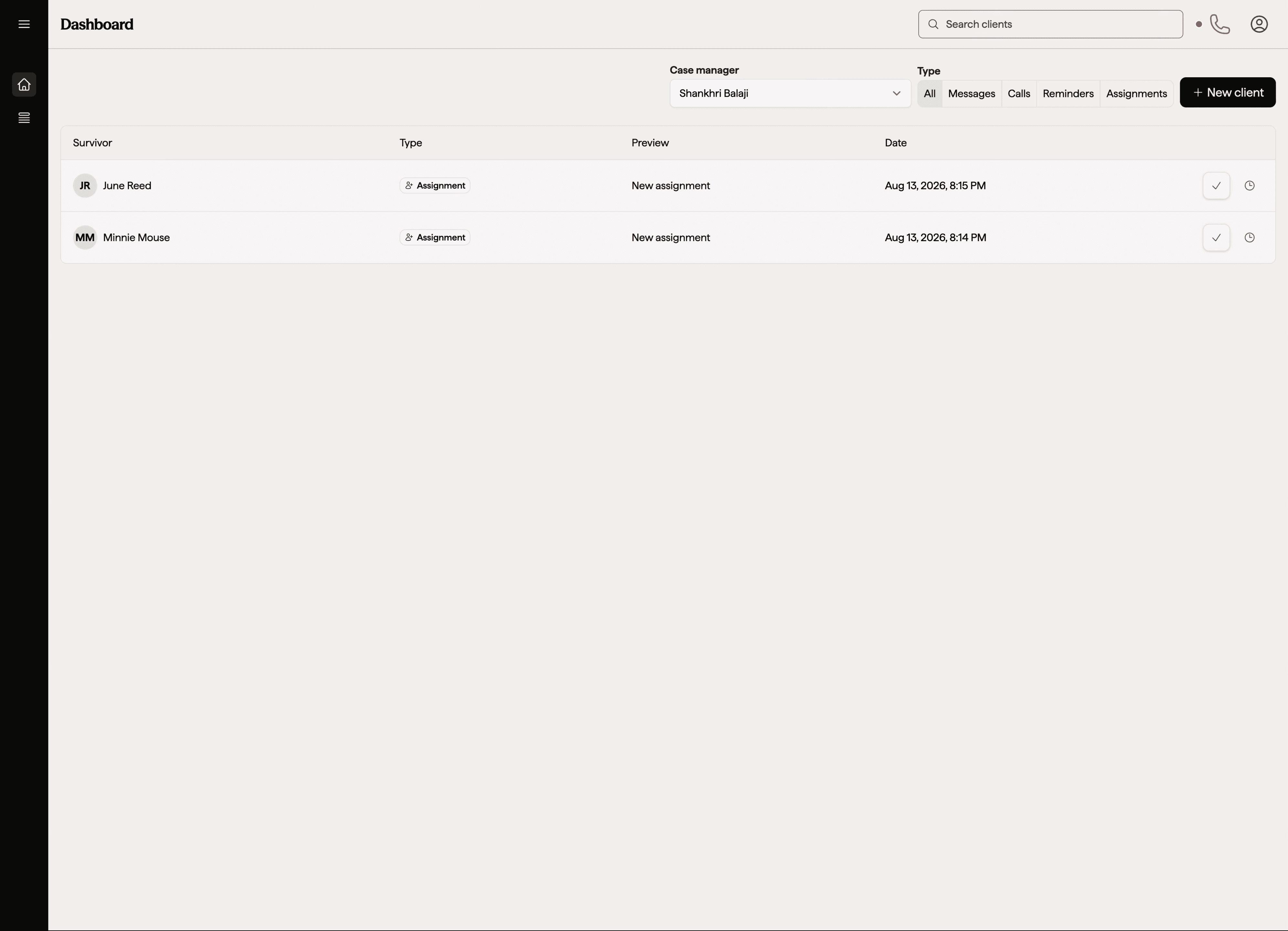
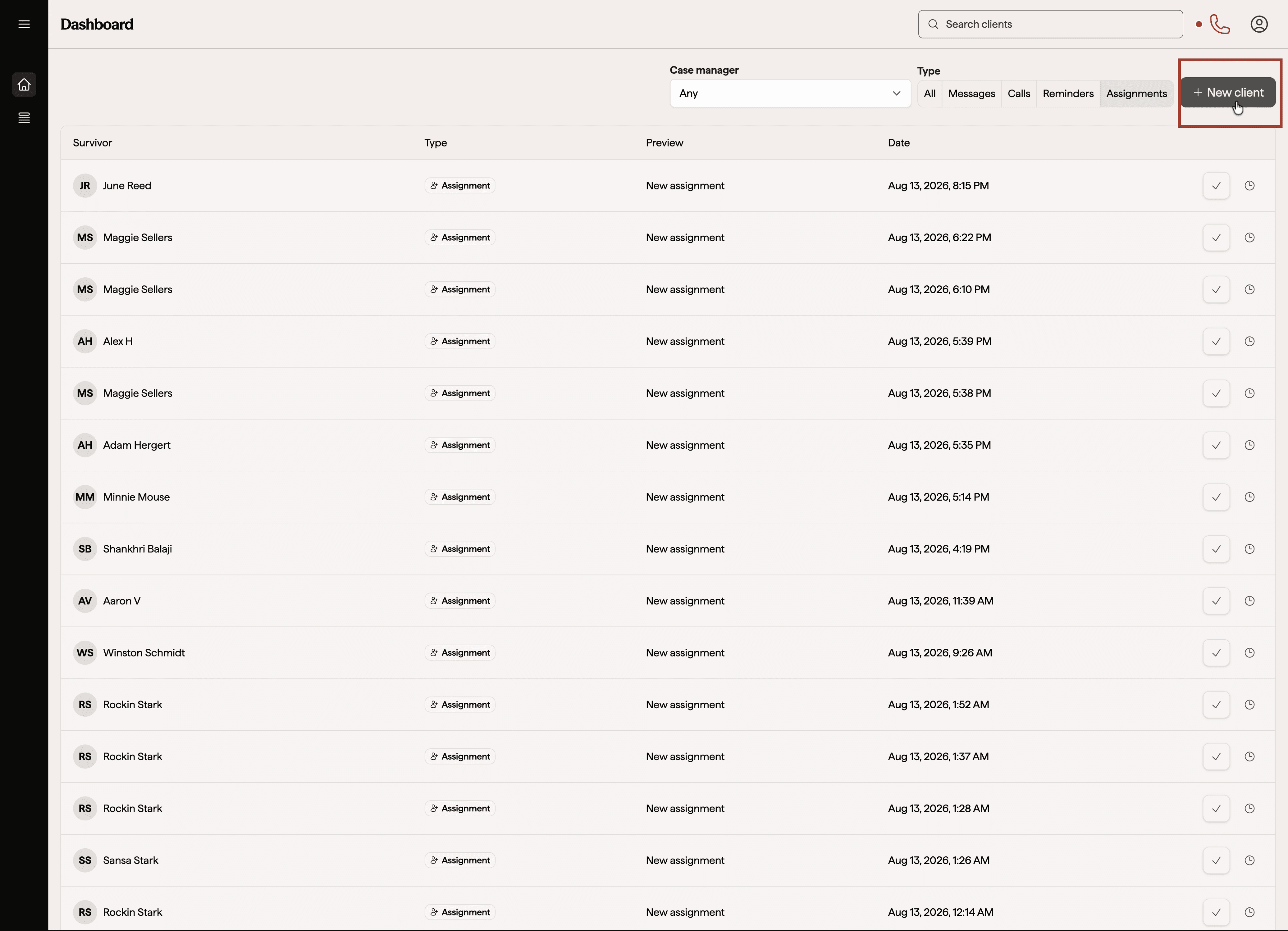
In the tasks table, you'll find an inbox of survivors that have been assigned to you, applications your assigned clients have submitted, SMS text messages they've sent you, incoming calls, and any reminders you have set for the day. Most recent tasks will appear at the top of the table.
Reading a Task Row
Each row shows:
The survivor the task relates to
The task type
A title or preview of the message, reminder, or task text
The date and time the task came in
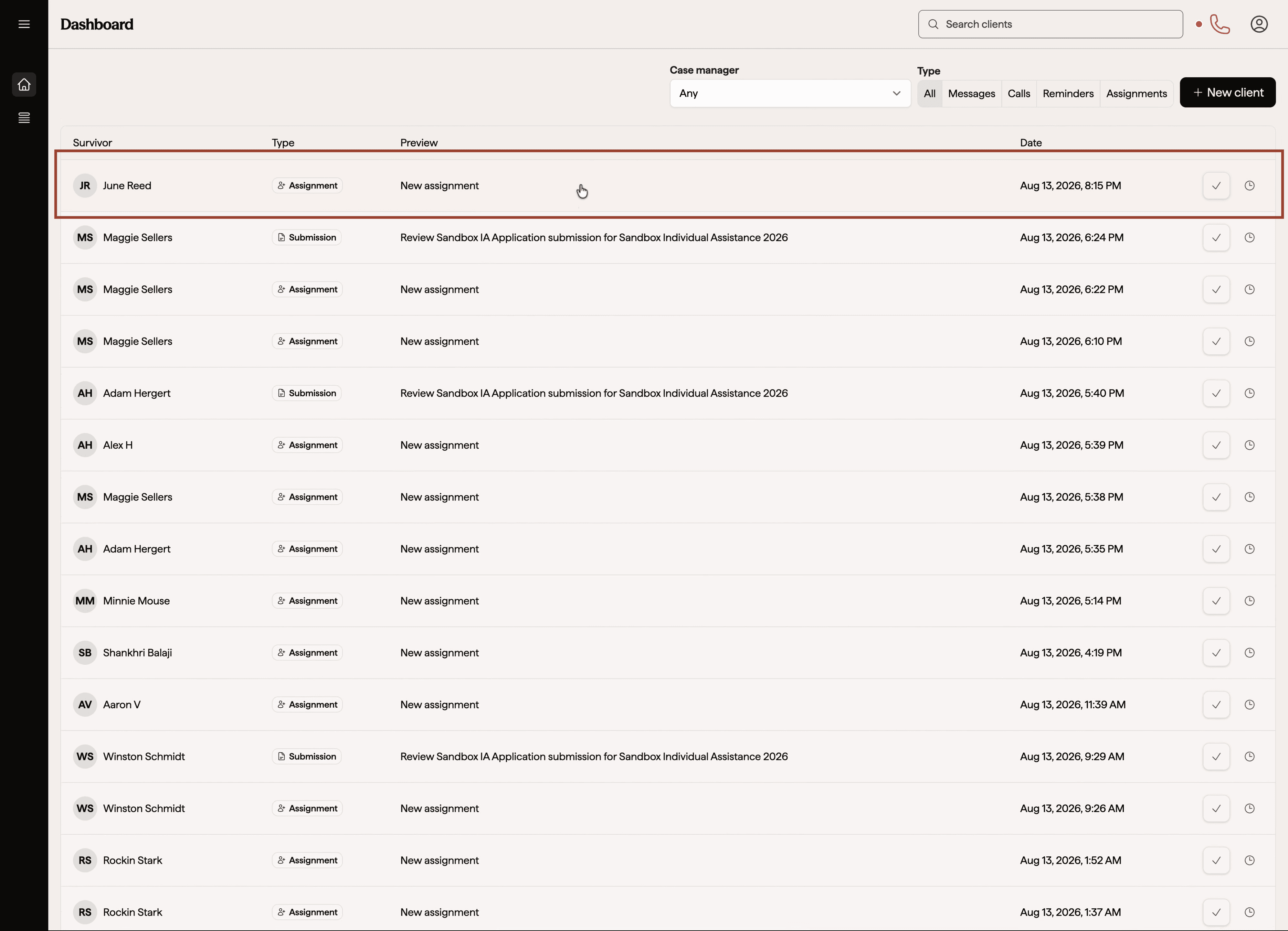
Click any task row to open that survivor's profile or application.
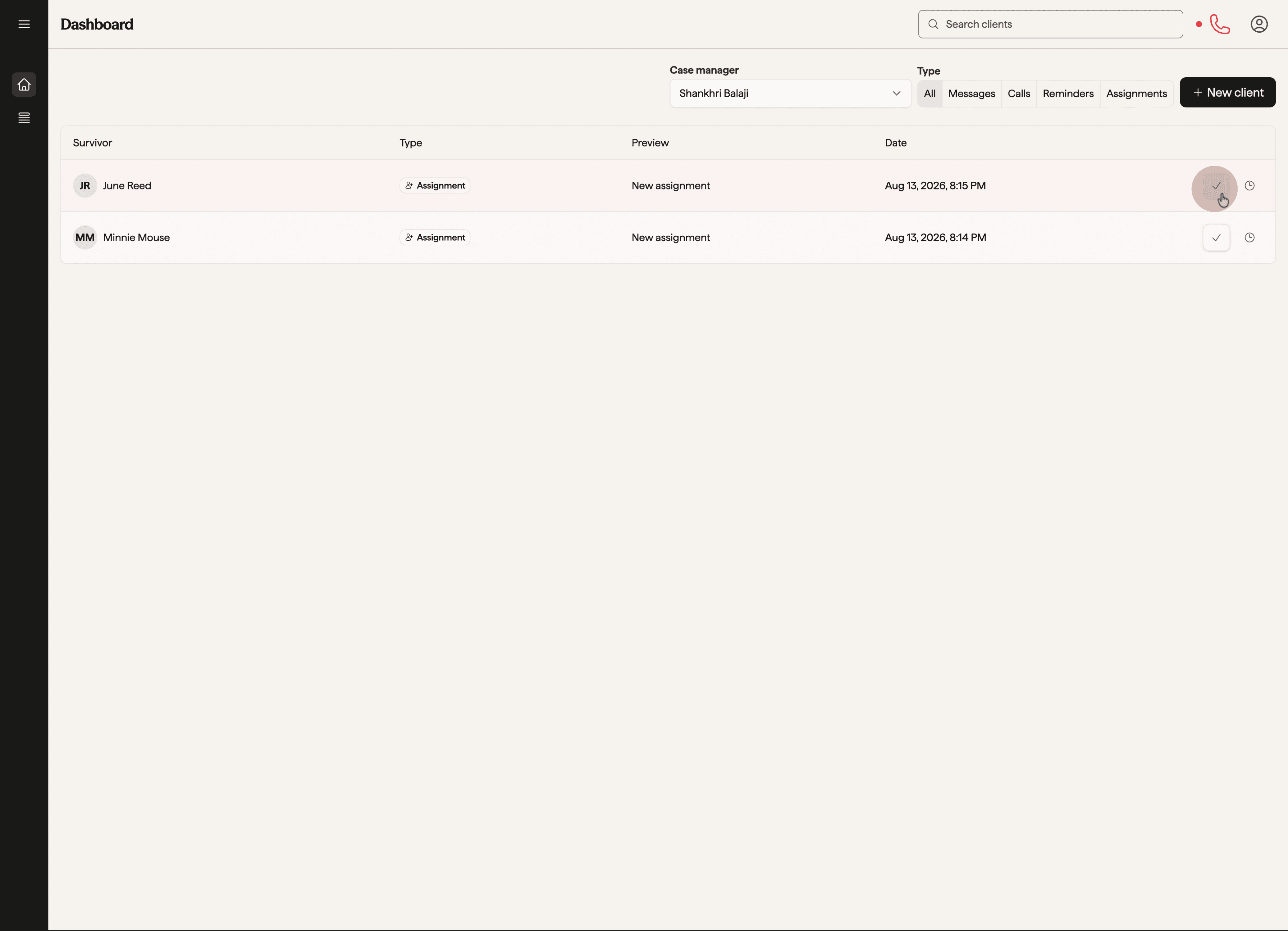
Completing a Task and Snoozing a Task
To the right, you'll find two actions. The first is to complete a task. By completing a task, you're removing it entirely from your Home dashboard, and this is an action that cannot be undone at this time.
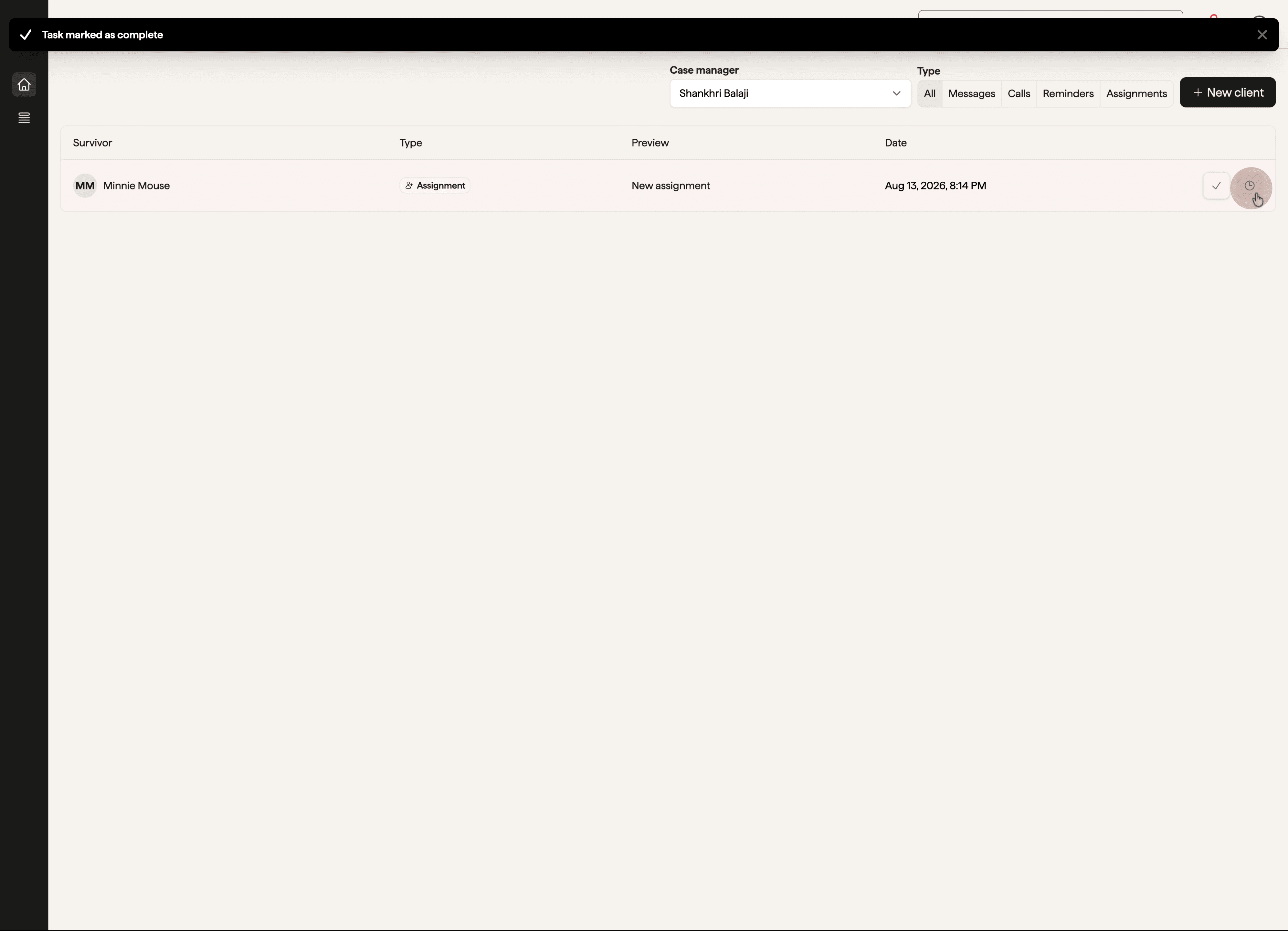
You can also snooze a task. Snoozing sets a reminder for the task to reappear in 5 calendar days, and this action cannot be undone at this time.
Seeing Other Case Managers' Tasks
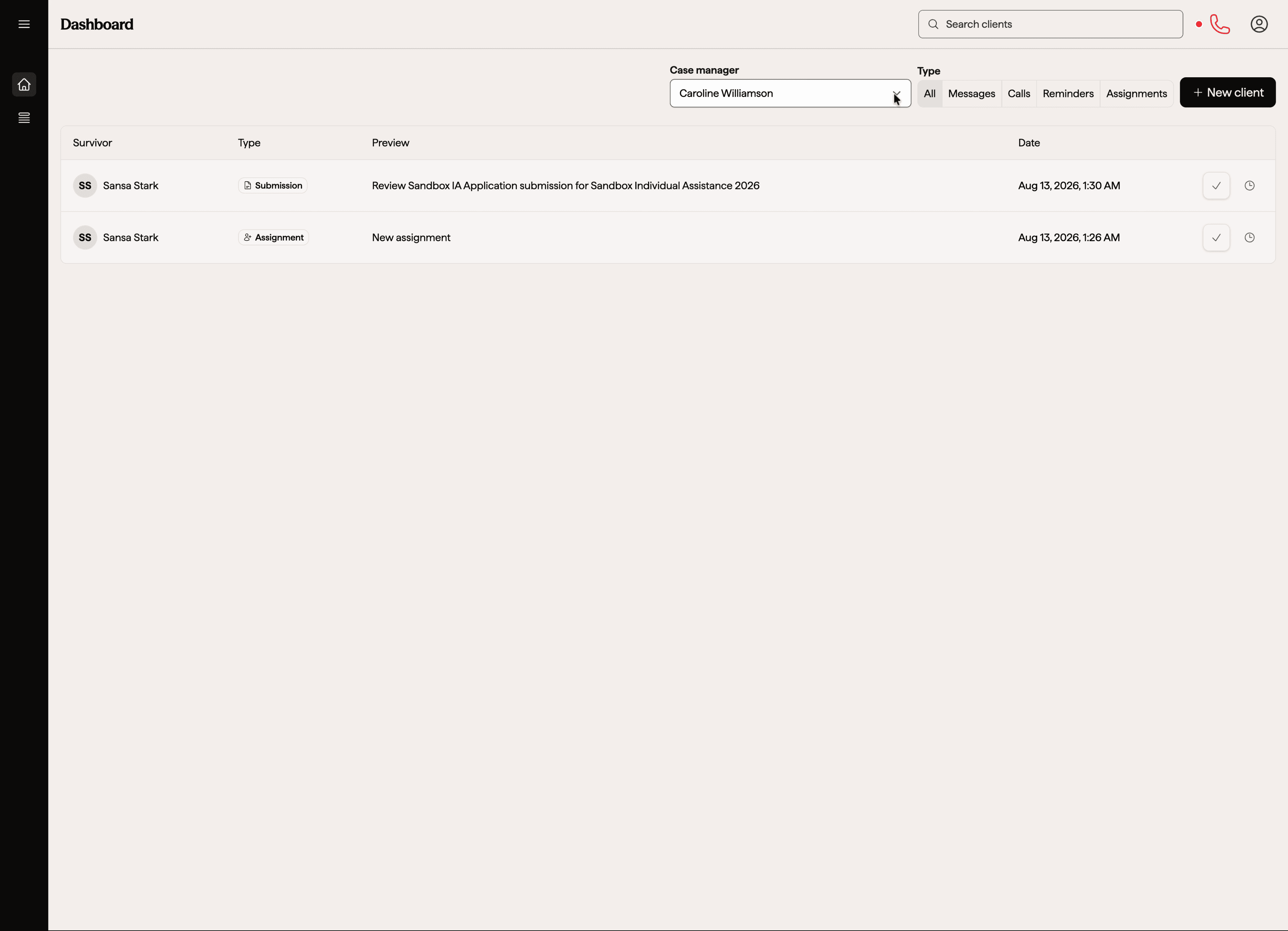
By utilizing the Case Manager dropdown at the top, you can select another Case Manager.
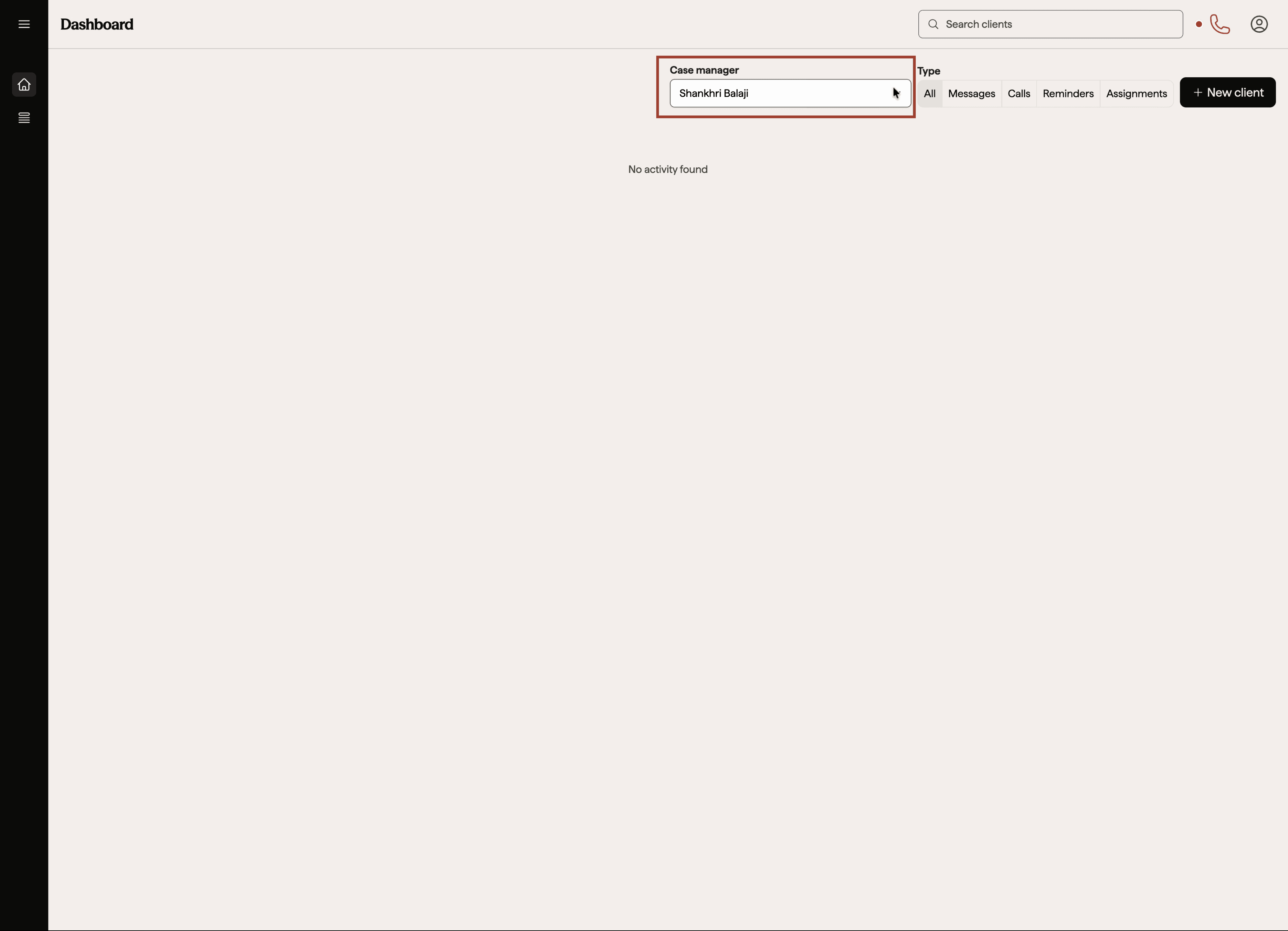
By doing so, you'll see their list of tasks.
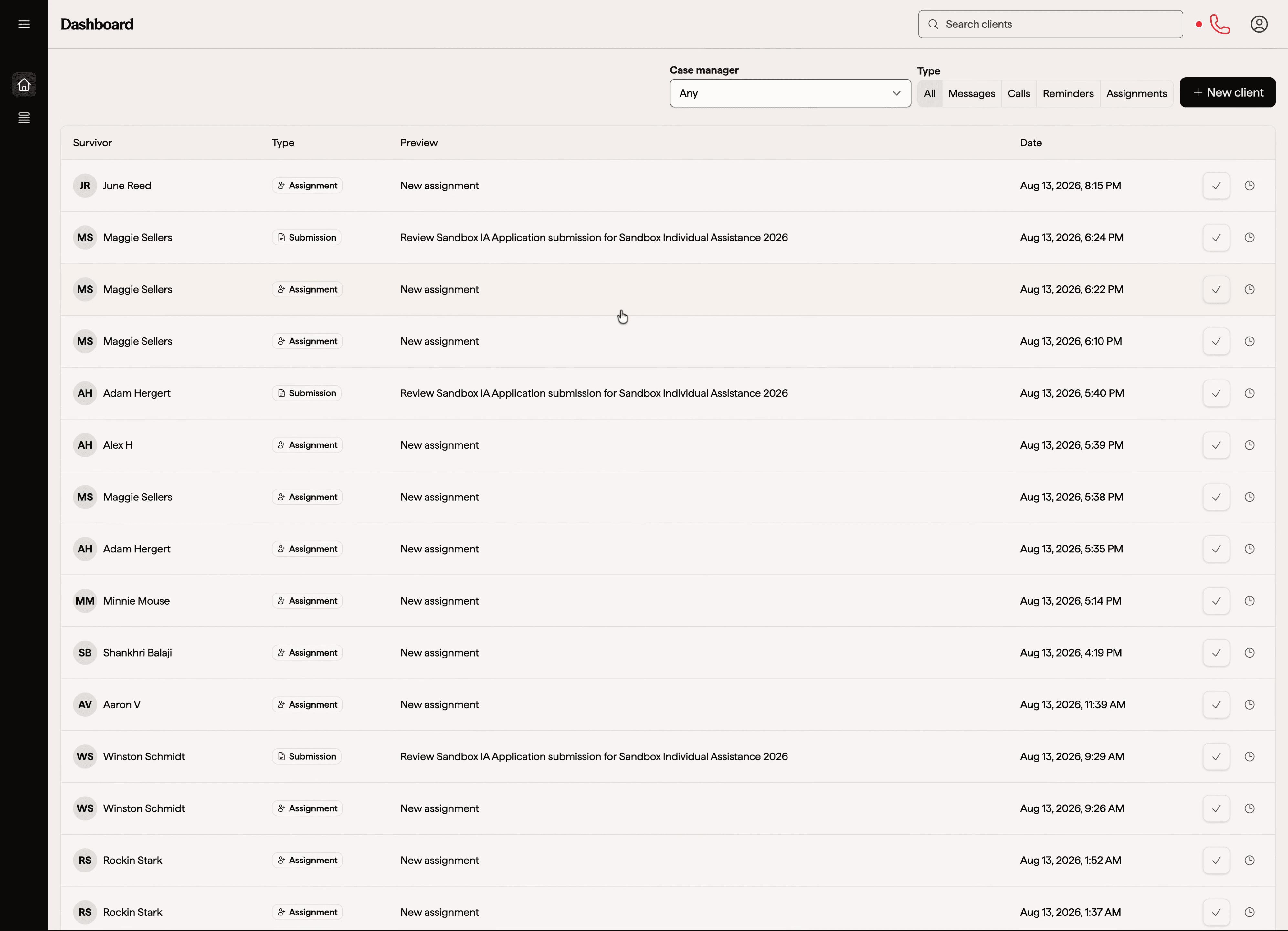
You can also select Any, and this will show you the full list of tasks assigned across caseworkers.
Click any row to navigate directly to that survivor's profile or application
Organizing Tasks by Type
You can also utilize the "Type" feature to the right of the Case Manager field. Here you can filter the tasks by messages, calls, reminders, assignments, and we're adding one more for submissions.
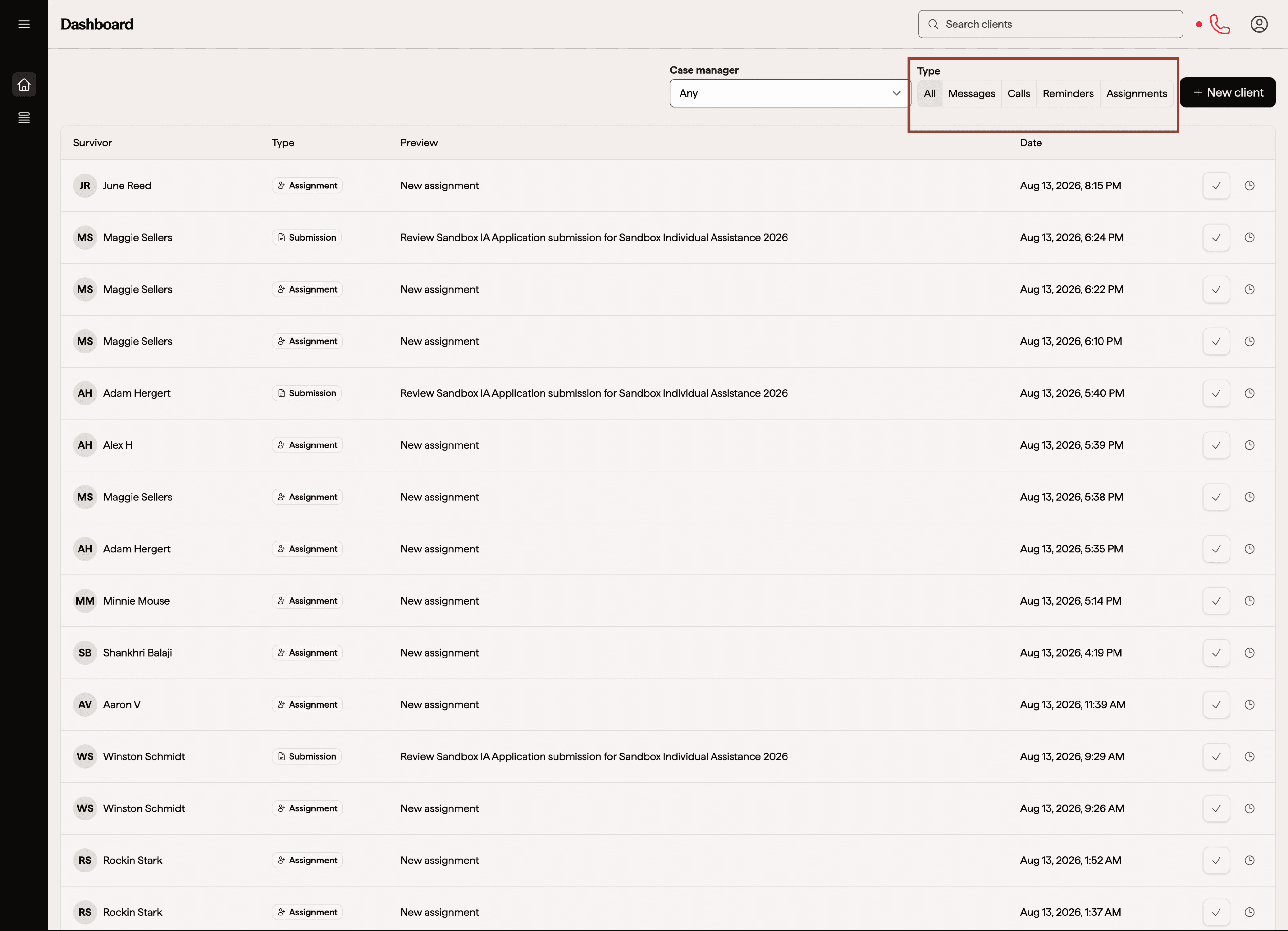
Use the filter to work through one kind of task at a time, such as clearing every unread SMS message before moving on to applications.
To see all your tasks again, select All from the types
Adding a New Client
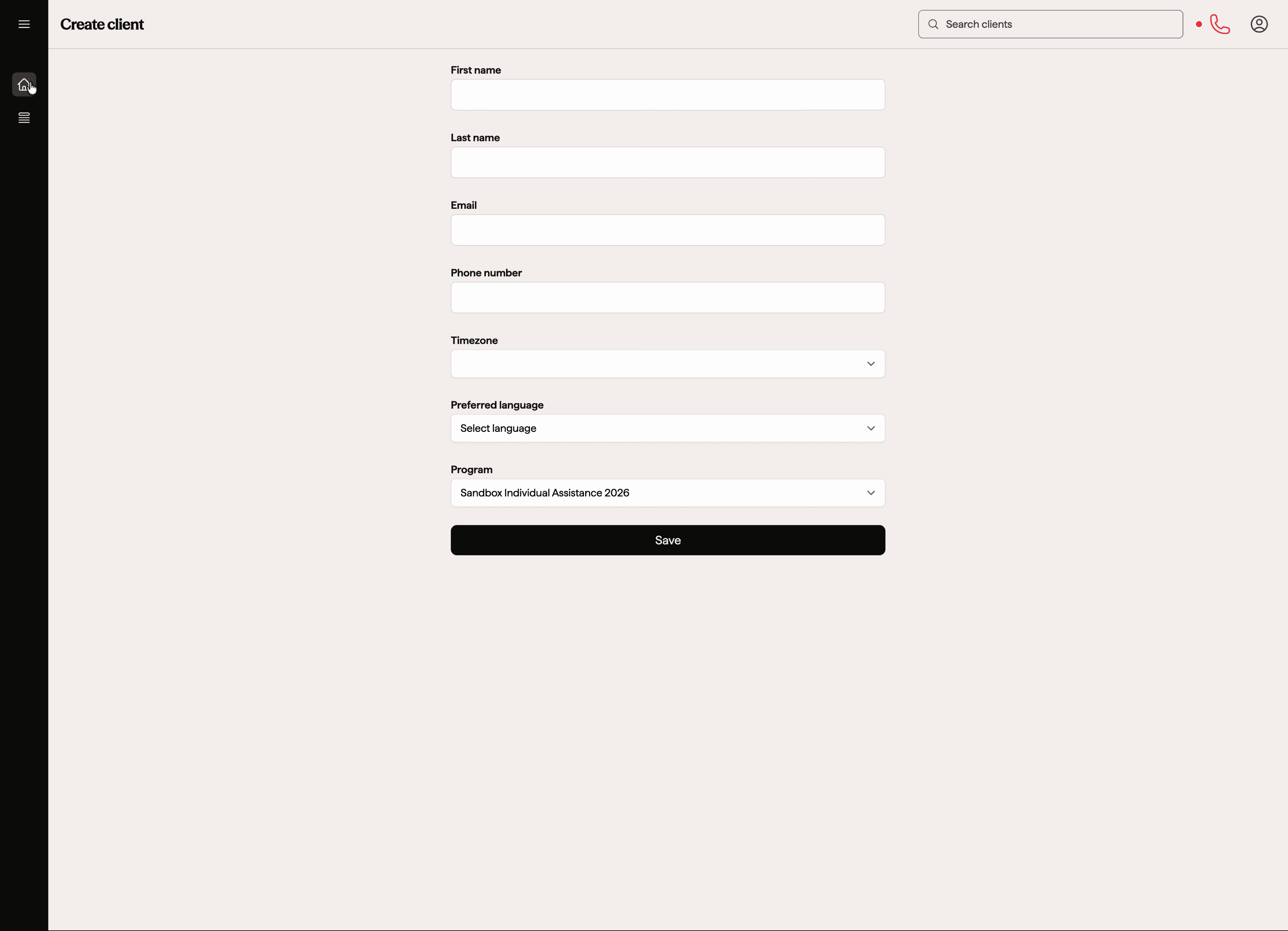
Click the New Client button to enter a new survivor's information and create their record in the Survivor Management System.
Use this to enter information about a new survivor to get them into our system.
Related articles
Additional Support
If this article doesn’t resolve the issue, contact platform support with the article link and a short description of what you’re seeing.